Showing posts with label Skype4B. Show all posts

Wednesday, 13 December 2017

Skype for Business Online conference policy overview

I have created an Excel workbook with all the available conference policies, so, during workshops, I could drill down to which policy should be assigned to the different users based on the features that should be available.

The file is available here.

Tuesday, 12 December 2017

New call routing features in Office 365

As christmas sneaks up on us, we have received new call routing features in our Office 365 subscription. The new call routing features are both auto attendant and call queues.

Auto Attendant news:

Just in time for the holidays a new holiday scheduling feature has been released. This gives us the opportunity to schedule a holiday period and greeting.


  1. Name the holiday set, e.g. Closed for christmas
  2. Define what the callers should hear, options are a TTS prompt or upload an audio file
  3. Define what should happen after the announcement, options are disconnect or redirect call to either a person in the company, a call queue or an auto attendant
  4. Define when should be activated start and end date and time (half-hour interval only, minutes 00 and 30). You can have multiple schedules
  5. Save and add to AA.
This feature is easy to implement and maintain for the office admins, but we still face an issue with the half-hour interval for business hours.

Call Queue news:
A new call distribution has been released, serial routing. This setting will route a call in the queue to the first agent in the grouplist, if this agent is not available then route to the second agent in the group etc. 

  1. The new Serial routing option
  2. List of groups of agents, the groups can be Office 365 groups, distribution lists or mail-enabled security groups
This feature improves the call queue usability for many organizations, but we still face a limitation of 50 agents per call queue.

Queue timeout has been made more granular, instead of just a number of minutes we now also have an option of seconds (0, 15, 30 or 45) which should be sufficient for most organizations.
When the queue time has been exceeded, the call is either disconnected or forwarded to a person in the company, a call queue or an auto attendant.

Last, but not least, it is worth to bring to attention the mobile app, which is now able to receive a call from a call queue, at least on my Android powered device.

This is from the log file of my mobile app:


Monday, 11 September 2017

New PSTN Conferencing opportunities

On October 1st, 2017 a change in PSTN Conferencing for Office 365 is coming to a tenant near you.

PSTN Conferencing will in the future, as a supplement to the well-known monthly subscription, also be available as Audio Conferencing pay-per-minute feature for E1, E3 and VL customers.

The most important notes are:
  • No monthly PSTN Conferencing subscription per users
  • Toll and toll-free inbound calls are charged on a per-minute basis
  • All outbound calls are charged on a per-minute basis
  • Available to enterprise E1, E3 and VL customers
This new feature will be a very interesting change for enterprises there are not using E5 license already. Especially if the E3 users only uses the PSTN Conferencing on a non-regular basis.


Rates for inbound calls are unknown at this point in time, but rates for outbound PSTN calls are listed here: https://products.office.com/en-us/skype-for-business/pstn-conferencing#Rates 

If a user has a PSTN Conferencing license (add-on or included) all toll inbound calls and outbound domestic (domestic to the user location) is included in the subscription fee. The add-on subscription license is $4.00 per user monthly.

Friday, 7 October 2016

Backup and restore user data after failed move from Lync Server 2010 to Skype for Business Server 2015

A customer has moved some thousand of their users from Lync Server 2010 to a Skype for Business Server 2015 pool. Few of these users failed with the dreaded


Distributed Component Object Model (DCOM) operation SetMoveResourceData failed. For details see inner exception (which didn't show anything useful to me).

The failed users were caught in a limbo and unable to sign in again, to resolve this incident, the customer decided to move the user with -force parameter, which causes the user to loose all contact and conference data. Their support organization talked to the few users and helped them recreate their contacts.

Before moving more users, we needed to create a backup plan, especially as the next batch of users contains a number of CXO users, and it might not career-enhancing if they loose data.

To make a documented and tested backup and restore plan for these users, I went through the process.

User kme is homed on Lync 2010 pool and has a few contacts in the contact list.

First we use dbimpexp.exe tool to export all user data for this user (or all users for a batch of users, just exclude the /user: parameter - for 12k users, this might take up to 5 seconds)
DBImpExp.exe /user:user@sipdomain /hrxmlfile:<filename>.xml /sqlserver:<SQLFQDN>


 Then we move the user to the Skype for Business Server 2015 pool.
Get-CsUser user | Move-CsUser -Target <SkypePoolFQDN> -MoveConferenceData -Force


When the user has been moved, we see all the user data was lost.


Now we need to import the user data.
Update-CsUserData -FileName .\<filename>.xml -UserFilter user@sipdomain

When the user sign out and sign in, the user data has been restored.

In case of a major restore operation it would be more appropriate to use Import-CsUserData cmdlet. 

Import-CsUserData cmdlet overwrites any existing data and needs a restart of frontend service (RTCSRV) on all frontends in the pool to be effective. Use this in case of a vast user restore operation, with many users. When the parameter -LegacyFormat is included, a non-existing, cmdlet Convert-CsLegacyUserData is triggered. In case of legacy userdata (pre Lync 2013), the XML file must converted first using the Convert-CsUserData cmdlet. E.g. Convert-CsUserData- FileName .\kme.xml -OutputFile kme.zip -TargetVersion Current

Update-CsUserData cmdlet appends to the contact list (merges) and is a more resource demanding operation. This will be effective immediately. Use this in case of a limited user restore operation or in case some users needs to have merged the restored contact list.


Wednesday, 5 October 2016

Change username when UPN and SIP URI are different

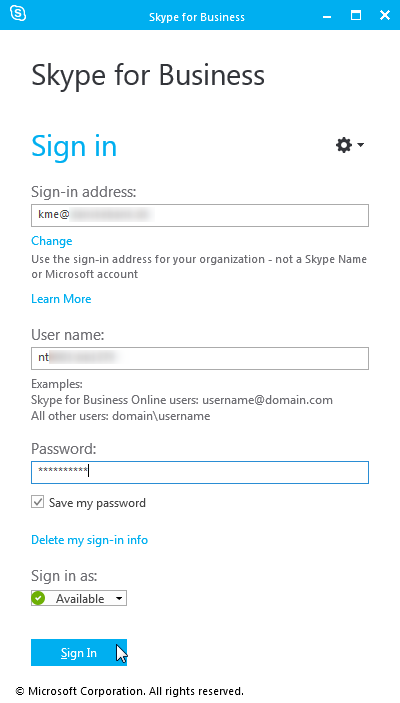
I just discussed how to change the username, when the UPN is different from the SIP URI. So I made this post to document my findings.

First sign out from the client (if applicable) and click "Delete My Sign-in Info" 


Confirm you really want to do this


Exit Skype for Business client application

Delete the sip_<username> folder, for Skype for Business 2016 it is in %userprofile%\appdata\Local\Microsoft\Office\16.0\Lync\. It is safe to delete the entire folder, it will be recreated at next logon.

Start Skype for Business client application again, enter password and press Sign In


Confirm you want to save the sign-in info
Oops (as expected)

Enter the UPN or Domain\SAMAccountName in the username field, password and click Sign In

Confirm you want to save the sign-in info

And the client signs in


Wednesday, 7 September 2016

Missing indexes in LcsCDR database

I investigated some users complaining over Skype for Business (Lync) Monitoring Reports for Response Groups that timed out and didn't return data.


The query in the report Response Group Usage Data uses the stored procedure CdrRGSUsageTrend in the monitoring database LcsCDR.


I went through the estimated execution plan in SQL for this stored proc


The execution plan showed a number of missing indexes, which I created (listed below)


CREATE NONCLUSTERED INDEX [IX_SessionDetails_Missing1] ON [dbo].[SessionDetails]
([ReplacesDialogIdTime] ASC,[SessionIdTime] ASC,[ReplacesDialogIdSeq] ASC,[CallFlag] ASC,[MediaTypes] ASC,[User1ClientVerId] ASC,[User2ClientVerId] ASC,[SessionIdSeq] ASC,[SessionStartedById] ASC,[User1Id] ASC,[User2Id] ASC,[CorrelationId] ASC,[ReferredById] ASC)
INCLUDE ([TargetUserId],[ResponseTime],[ResponseCode],[SessionEndTime]) WITH (PAD_INDEX = OFF, STATISTICS_NORECOMPUTE = OFF, SORT_IN_TEMPDB = OFF, DROP_EXISTING = OFF, ONLINE = OFF, ALLOW_ROW_LOCKS = ON, ALLOW_PAGE_LOCKS = ON, FILLFACTOR = 80) ON [PRIMARY]
GO


CREATE NONCLUSTERED INDEX [IX_SessionDetails_Missing2] ON [dbo].[SessionDetails]
([CorrelationId] ASC,[SessionIdTime] ASC,[ReplacesDialogIdTime] ASC,[ReplacesDialogIdSeq] ASC,[CallFlag] ASC,[MediaTypes] ASC,[User1ClientVerId] ASC,[User2ClientVerId] ASC,[SessionIdSeq] ASC,[SessionStartedById] ASC,[User1Id] ASC,[User2Id] ASC,[ReferredById] ASC)
INCLUDE ([TargetUserId],[ResponseTime],[ResponseCode],[SessionEndTime]) WITH (PAD_INDEX = OFF, STATISTICS_NORECOMPUTE = OFF, SORT_IN_TEMPDB = OFF, DROP_EXISTING = OFF, ONLINE = OFF, ALLOW_ROW_LOCKS = ON, ALLOW_PAGE_LOCKS = ON, FILLFACTOR = 80) ON [PRIMARY]
GO


CREATE NONCLUSTERED INDEX [IX_SessionDetails_Missing3] ON [dbo].[SessionDetails]
([ReplacesDialogIdTime] ASC,[ReplacesDialogIdSeq] ASC,[MediaTypes] ASC) WITH (PAD_INDEX = OFF, STATISTICS_NORECOMPUTE = OFF, SORT_IN_TEMPDB = OFF, DROP_EXISTING = OFF, ONLINE = OFF,
ALLOW_ROW_LOCKS = ON, ALLOW_PAGE_LOCKS = ON) ON [PRIMARY]
GO


CREATE NONCLUSTERED INDEX [IX_SessionDetails_Missing4] ON [dbo].[SessionDetails]
([CorrelationId] ASC,[MediaTypes] ASC) WITH (PAD_INDEX = OFF, STATISTICS_NORECOMPUTE = OFF, SORT_IN_TEMPDB = OFF, DROP_EXISTING = OFF, ONLINE = OFF, ALLOW_ROW_LOCKS = ON, ALLOW_PAGE_LOCKS = ON) ON [PRIMARY]
GO


CREATE NONCLUSTERED INDEX [IX_SessionDetails_Missing5] ON [dbo].[SessionDetails]
([ReplacesDialogIdTime] ASC,[ReplacesDialogIdSeq] ASC,[SessionIdTime] ASC,[MediaTypes] ASC)
INCLUDE ([SessionIdSeq],[CorrelationId],[User1Id],[User2Id],[SessionStartedById],[User1ClientVerId],[User2ClientVerId],[CallFlag]) WITH (PAD_INDEX = OFF, STATISTICS_NORECOMPUTE = OFF, SORT_IN_TEMPDB = OFF, DROP_EXISTING = OFF, ONLINE = OFF, ALLOW_ROW_LOCKS = ON, ALLOW_PAGE_LOCKS = ON) ON [PRIMARY]
GO


CREATE NONCLUSTERED INDEX [IX_SessionDetails_Missing6] ON [dbo].[SessionDetails]
([ReplacesDialogIdTime] ASC,[ReplacesDialogIdSeq] ASC,[SessionIdTime] ASC,[MediaTypes] ASC)
INCLUDE ([SessionIdSeq],[User1Id],[User2Id],[SessionStartedById],[ReferredById],[User1ClientVerId],[User2ClientVerId],[ResponseCode]) WITH (PAD_INDEX = OFF, STATISTICS_NORECOMPUTE = OFF, SORT_IN_TEMPDB = OFF, DROP_EXISTING = OFF, ONLINE = OFF, ALLOW_ROW_LOCKS = ON, ALLOW_PAGE_LOCKS = ON) ON [PRIMARY]
GO


CREATE NONCLUSTERED INDEX [IX_SessionDetails_Missing7] ON [dbo].[SessionDetails]
([ReplacesDialogIdTime] ASC,[ReplacesDialogIdSeq] ASC,[SessionIdTime] ASC,[MediaTypes] ASC)
INCLUDE ([SessionIdSeq],[CorrelationId],[User1Id],[User2Id],[SessionStartedById],[User1ClientVerId],[User2ClientVerId],[ResponseCode],[CallFlag]) WITH (PAD_INDEX = OFF, STATISTICS_NORECOMPUTE = OFF, SORT_IN_TEMPDB = OFF, DROP_EXISTING = OFF, ONLINE = OFF, ALLOW_ROW_LOCKS = ON, ALLOW_PAGE_LOCKS = ON) ON [PRIMARY]
GO


After creating these indexes, the report was succesfully generated.


Thursday, 1 September 2016

Access denied when creating local databases

When I was installing a new Skype for Business Server 2015 frontend server pool for a customer, installation of the Skype for Business components failed with this useless error messages: 0x80004005 (Unspecified error) and failure code 1603 (which is a generic error code).


Digging into the LCSSetup_Commands.log showed this entry:
Creating database rtcdyn from scratch. Data File Path = D:\CsData\RtcDatabaseStore\rtclocal\DynDbPath, Log File Path= E:\CsData\RtcDatabaseStore\rtclocal\DynLogPath.
Exception Stack:
Type: Microsoft.SqlServer.Management.Smo.FailedOperationException, Message: Create failed for Database 'rtcdyn'.
Type: Microsoft.SqlServer.Management.Common.ExecutionFailureException, Message: An exception occurred while executing a Transact-SQL statement or batch.
Type: System.Data.SqlClient.SqlException, Message: CREATE FILE encountered operating system error 5(Access is denied.) while attempting to open or create the physical file 'D:\CsData\RtcDatabaseStore\rtclocal\DynDbPath\rtcdyn.mdf'.
CREATE DATABASE failed. Some file names listed could not be created. Check related errors.
Access denied from the operating system?? Investigating the Security eventlog I found som of these entries: 

Issue is related to insufficient filesystem priviliges.

Checking the filesystem priviliges, I found that the special permissions not granted in the picture above, was missing from the root of the drive. 

How it should look like:


Adding the default user permissions the root of the drive fixed the problem and the installation of the server could continue.

Problem was caused by additional security settings made by the customer.

Wednesday, 15 June 2016

Change SIP URI of a response group

A customer wanted me to change the SIP uri of a response group workflow. This is not an option using the Response Group Configuration Tool, so what you must do is delete the existing workflow and create a new with the same parameters, the workflow Name is a unique identifier.

This is not what I wanted, so I turned to Powershell.

Tried:
$wf = Get-CsRgsWorkflow | where-object {$_.Name -eq "RGS test"}
$wf.primaryuri = 'sip:testrgs@sip.dom'
Set-CsRgsWorkflow $wf

But this was, kind of expected, not possible. You cannot change the primary uri of a Response Group Workflow...

Off course I can, I just need to figure out how.

In the backend database of the frontend pool hosting the RGS application, there is a database RGSDYN, I have blogged about that previously here: https://uctales.blogspot.dk/2016/02/response-group-agent-state.html, this database contains all dynamic data on e.g. agents logged in state. There is also a RGSCONFIG database, this database contains all RGS configuration.

Going to SQL Server Management Studio and opening a query window and entered this query:
use rgsconfig
go
Select Name,PrimaryUri from Workflows where PrimaryUri like 'sip:rgstest%'
Shows the Name and SIP uri of the RGS test workflow.

Changing the SIP uri of the workflow using SSMS, from sip:rgstest@sip.dom to sip:testrgs@sip.dom.
use rgsconfig
go
update Workflows
set PrimaryUri = 'sip:testrgs@sip.dom'
where PrimaryUri = 'sip:rgstest@sip.dom'

Now we have changed the SIP uri of the workflow, but this is not enough, we must also change SIP uri and proxy address of the application contact object i Active Directory.

To find the application contact, we go to Powershell again and searches for the endpoints.
Get-CsApplicationEndpoint | Where-Object {$_.sipaddress -like "sip:testrgs*"}
This cmdlet returns the application endpoint identity, which we need to locate the AD object itself.


Go to ADSIedit.msc and open the configuration store -> Services -> RTC service -> Application Contacts and edit the object attributes msRTCSIP-PrimaryUserAddress to sip:testrgs@sip.dom and proxyAddresses to sip:testrgs@sip.dom

Tested workflow and everything works nicely. Job done.

Disclaimer: Editing the database entries and AD objects for Application Contacts, might lead to an undesirable state, unrecoverable failures, unsupported solution or smelly feet. Please only do this at your own risk and if you know what you are doing and are able to recover from these risks.

Monday, 22 February 2016

What is what when it comes to the contact card

I was wondering which attributes from an AD user object, is shown on the Lync/Skype4B contact card.

Let's check it out.


I took an old friend of mine from my lab, Mr. Baggins, you might know him, not so tall chap rather polite and always dresses perfectly for the occassion, gave him a few different values for his AD attributes.


Then I ran the Update-CsAddressbook cmdlet and waited for the event 21056 to appear. All good. Started the client and got the newest address book, ready to go.

Searching for Bilbo, got this result
Obviously we see the Display Name (red square), Job Title (green square) and Department (blue square).

Showing the contact card, rendered this result.

Here we see a clear mapping between the AD attributes and the contact card fields.

Using the ABSConfig.exe tool (part of the Lync/Skype4B reskit), we can clearly see these mappings.

We can also adapt the mapping between these fields, and leave some of them out, if necessary. There is an extra column to the right, with the label "Enabled" removing the tick from the box, removes the attribute from the contact card.


Tuesday, 5 January 2016

Database mirror monitoring

When a Skype for Business Server 2015 backend SQL server is using database mirroring for high availability, some information on issues with the mirroring relation is required.


Set up Database Mirroring Monitor:
Launch the Database Mirroring Monitor tool


Go to Menu -> Action and select Register Mirrored Database


Select the primary server in the drop down menu and tick all the databases you want to monitor


Select a database and go to Warnings pane, click Set Thresholds


Set thresholds like this


Repeat for every database mirror relation you want to monitor


Now you will get an informational event 32042 in the application event log when the size of unsent transaction exceeds 100KB


And you will recieve an informational event 32040 in the application event log when the age of the oldest unsent transaction surpasses 5 minutes (4 minutes on mirror server)


Now you will add the event log entries to your favorite monitoring tool and you should be covered from this event, if you react properly to these above event

Which occurs when the transaction log is full due to database mirroring stopped.