Showing posts with label Skype. Show all posts

Tuesday, 9 October 2018

Provide easy access to call queue optin/optout

As more and more services transition from Skype for Business to Microsoft Teams, also call-queues and auto-attendants are available for a Teams user organization.

In the call-queue, there is an option to allow for agents to opt-out of the call-queue and hence not receive calls from the call-queue.

In Skype for Business, this can be accessed from the client settings.

However, when the user has upgraded to Teams, there is not a link, or setting, that can help the user to the settings, they need to remember the URL themselves. Not the best option, my bet is the URL will be lost, soon after opt-out of the call-queue.

To provide easy access to the settings page, we can create a custom tile in the Office 365 applauncher. Go to the admin page in Office 365 -> Settings -> Organization Profile and select "Add custom tiles for your organization". If this option is not present, you need to assign a license, provision an Exchange mailbox and login to Outlook Web client. The mailbox and license can be removed afterwards.

Select "Add a custom tile"

Add these settings and click "Save"

Now the users can easily access the settings page from the tile in their applauncher and they can even pin the tile to the starter for quicker access.

The user can now opt-out and change other settings easily and the URL will not be lost.


Tuesday, 12 December 2017

New call routing features in Office 365

As christmas sneaks up on us, we have received new call routing features in our Office 365 subscription. The new call routing features are both auto attendant and call queues.

Auto Attendant news:

Just in time for the holidays a new holiday scheduling feature has been released. This gives us the opportunity to schedule a holiday period and greeting.


  1. Name the holiday set, e.g. Closed for christmas
  2. Define what the callers should hear, options are a TTS prompt or upload an audio file
  3. Define what should happen after the announcement, options are disconnect or redirect call to either a person in the company, a call queue or an auto attendant
  4. Define when should be activated start and end date and time (half-hour interval only, minutes 00 and 30). You can have multiple schedules
  5. Save and add to AA.
This feature is easy to implement and maintain for the office admins, but we still face an issue with the half-hour interval for business hours.

Call Queue news:
A new call distribution has been released, serial routing. This setting will route a call in the queue to the first agent in the grouplist, if this agent is not available then route to the second agent in the group etc. 

  1. The new Serial routing option
  2. List of groups of agents, the groups can be Office 365 groups, distribution lists or mail-enabled security groups
This feature improves the call queue usability for many organizations, but we still face a limitation of 50 agents per call queue.

Queue timeout has been made more granular, instead of just a number of minutes we now also have an option of seconds (0, 15, 30 or 45) which should be sufficient for most organizations.
When the queue time has been exceeded, the call is either disconnected or forwarded to a person in the company, a call queue or an auto attendant.

Last, but not least, it is worth to bring to attention the mobile app, which is now able to receive a call from a call queue, at least on my Android powered device.

This is from the log file of my mobile app:


Monday, 11 September 2017

New PSTN Conferencing opportunities

On October 1st, 2017 a change in PSTN Conferencing for Office 365 is coming to a tenant near you.

PSTN Conferencing will in the future, as a supplement to the well-known monthly subscription, also be available as Audio Conferencing pay-per-minute feature for E1, E3 and VL customers.

The most important notes are:
  • No monthly PSTN Conferencing subscription per users
  • Toll and toll-free inbound calls are charged on a per-minute basis
  • All outbound calls are charged on a per-minute basis
  • Available to enterprise E1, E3 and VL customers
This new feature will be a very interesting change for enterprises there are not using E5 license already. Especially if the E3 users only uses the PSTN Conferencing on a non-regular basis.


Rates for inbound calls are unknown at this point in time, but rates for outbound PSTN calls are listed here: https://products.office.com/en-us/skype-for-business/pstn-conferencing#Rates 

If a user has a PSTN Conferencing license (add-on or included) all toll inbound calls and outbound domestic (domestic to the user location) is included in the subscription fee. The add-on subscription license is $4.00 per user monthly.

Wednesday, 5 October 2016

Change username when UPN and SIP URI are different

I just discussed how to change the username, when the UPN is different from the SIP URI. So I made this post to document my findings.

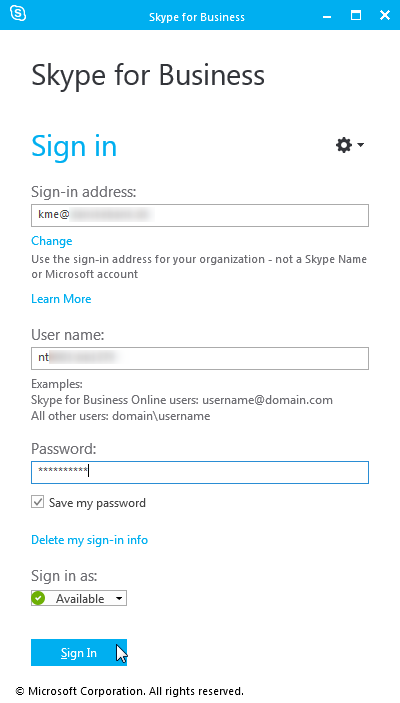
First sign out from the client (if applicable) and click "Delete My Sign-in Info" 


Confirm you really want to do this


Exit Skype for Business client application

Delete the sip_<username> folder, for Skype for Business 2016 it is in %userprofile%\appdata\Local\Microsoft\Office\16.0\Lync\. It is safe to delete the entire folder, it will be recreated at next logon.

Start Skype for Business client application again, enter password and press Sign In


Confirm you want to save the sign-in info
Oops (as expected)

Enter the UPN or Domain\SAMAccountName in the username field, password and click Sign In

Confirm you want to save the sign-in info

And the client signs in


Thursday, 1 September 2016

Access denied when creating local databases

When I was installing a new Skype for Business Server 2015 frontend server pool for a customer, installation of the Skype for Business components failed with this useless error messages: 0x80004005 (Unspecified error) and failure code 1603 (which is a generic error code).


Digging into the LCSSetup_Commands.log showed this entry:
Creating database rtcdyn from scratch. Data File Path = D:\CsData\RtcDatabaseStore\rtclocal\DynDbPath, Log File Path= E:\CsData\RtcDatabaseStore\rtclocal\DynLogPath.
Exception Stack:
Type: Microsoft.SqlServer.Management.Smo.FailedOperationException, Message: Create failed for Database 'rtcdyn'.
Type: Microsoft.SqlServer.Management.Common.ExecutionFailureException, Message: An exception occurred while executing a Transact-SQL statement or batch.
Type: System.Data.SqlClient.SqlException, Message: CREATE FILE encountered operating system error 5(Access is denied.) while attempting to open or create the physical file 'D:\CsData\RtcDatabaseStore\rtclocal\DynDbPath\rtcdyn.mdf'.
CREATE DATABASE failed. Some file names listed could not be created. Check related errors.
Access denied from the operating system?? Investigating the Security eventlog I found som of these entries: 

Issue is related to insufficient filesystem priviliges.

Checking the filesystem priviliges, I found that the special permissions not granted in the picture above, was missing from the root of the drive. 

How it should look like:


Adding the default user permissions the root of the drive fixed the problem and the installation of the server could continue.

Problem was caused by additional security settings made by the customer.

Tuesday, 5 January 2016

Database mirror monitoring

When a Skype for Business Server 2015 backend SQL server is using database mirroring for high availability, some information on issues with the mirroring relation is required.


Set up Database Mirroring Monitor:
Launch the Database Mirroring Monitor tool


Go to Menu -> Action and select Register Mirrored Database


Select the primary server in the drop down menu and tick all the databases you want to monitor


Select a database and go to Warnings pane, click Set Thresholds


Set thresholds like this


Repeat for every database mirror relation you want to monitor


Now you will get an informational event 32042 in the application event log when the size of unsent transaction exceeds 100KB


And you will recieve an informational event 32040 in the application event log when the age of the oldest unsent transaction surpasses 5 minutes (4 minutes on mirror server)


Now you will add the event log entries to your favorite monitoring tool and you should be covered from this event, if you react properly to these above event

Which occurs when the transaction log is full due to database mirroring stopped.